CalcnestThe calculator that opens instantly — plus the everyday tools you actually use, with every result saved.
A calculator and 8 everyday tools in one app
Calcnest opens straight to the calculator. It follows the order of operations, so 2 + 2 × 3 = 8, and its percent key works like a desk calculator: 50 + 10% = 55. Percent, discount, tip & bill split, unit converter, date, loan, unit price and BMI tools sit one tap away, and every calculator and tool result is saved to history automatically, with no limit.
Sound familiar?
A calculator that says 2 + 2 × 3 = 12, or turns 50 + 10% into 50.1, so you stop trusting the answer
Hunting for a separate app or website every time you need a discount, a tip split, a unit or a loan payment
The number you worked out a minute ago is gone, or history only keeps the last few lines
Calcnest keeps the calculator and everyday tools together, and saves every result 🧮
Fast to calculate, easy to look back on
Open and type, or pick a tool in one tap
Opens to the calculator
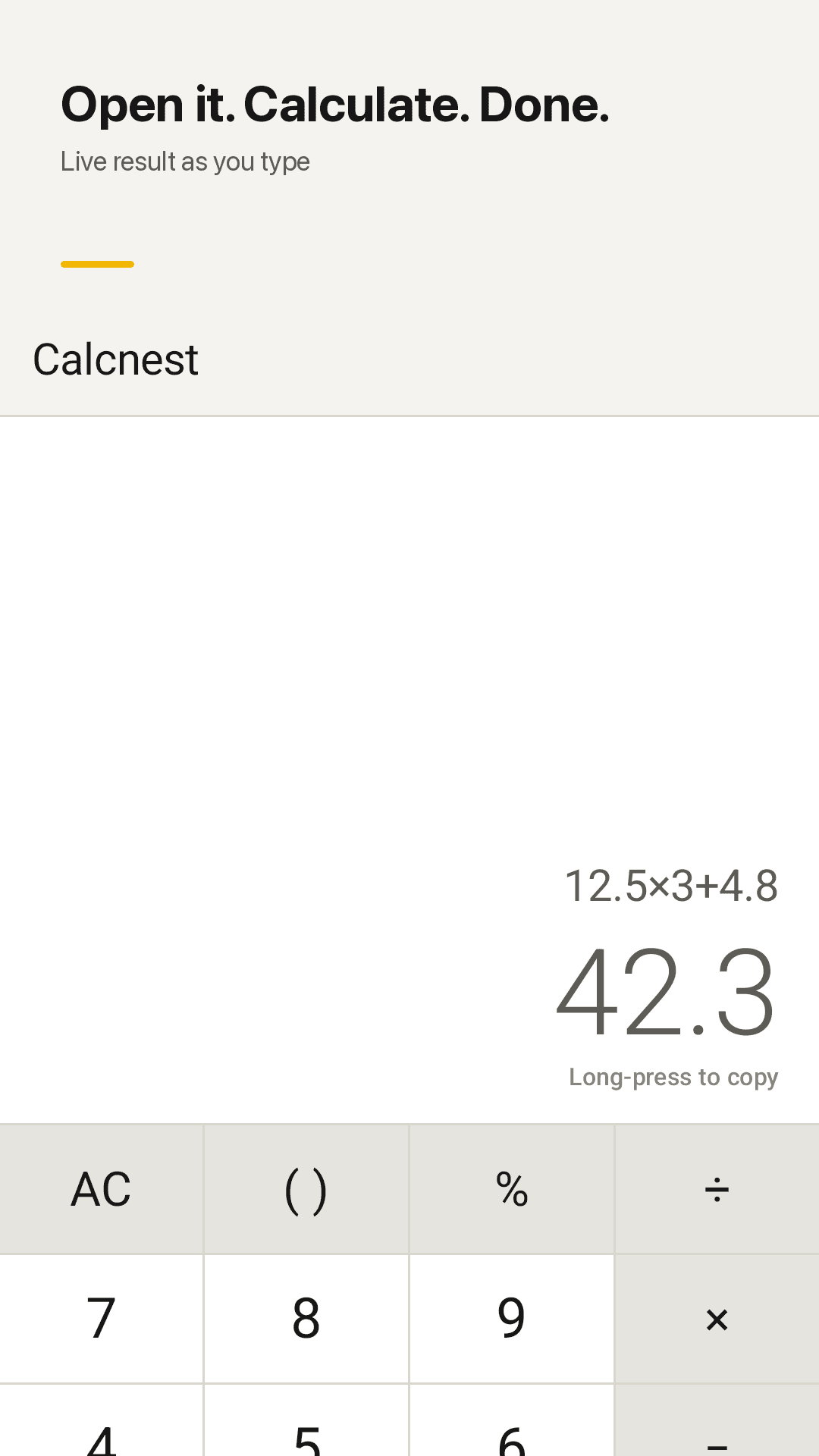
The calculator is the first screen. A live preview shows the result as you type, and a long-press copies it.
Correct order of operations
Multiplication and division come first, so 2 + 2 × 3 = 8. Set decimal places and a thousands separator.
Desk-calculator percent
50 + 10% = 55, 50 − 10% = 45, 50 × 10% = 5 — the same way a shop's desk calculator works.
8 everyday tools
Percent, discount (with an extra discount), tip & bill split, unit converter, date, loan, unit price and BMI (WHO adult range, reference only).
Units down to the kitchen
Length, weight, volume, temperature, area, speed and data, plus cups, tbsp and tsp ↔ grams for water, milk, flour, sugar, butter and rice.
Unlimited history
Every calculator and tool result is saved. Pin, add a note, tap to reuse, swipe to delete with undo, or share as text.
Widget & Quick Settings tile
A home-screen widget with your last result, the calculator and 2 favorite tools, plus a Quick Settings tile.
No account, works offline
No sign-up, and your data stays on your phone. Works without internet, in light or dark theme.
See it in action
Calculator, discount, history and tools
Opens to the calculator, live result
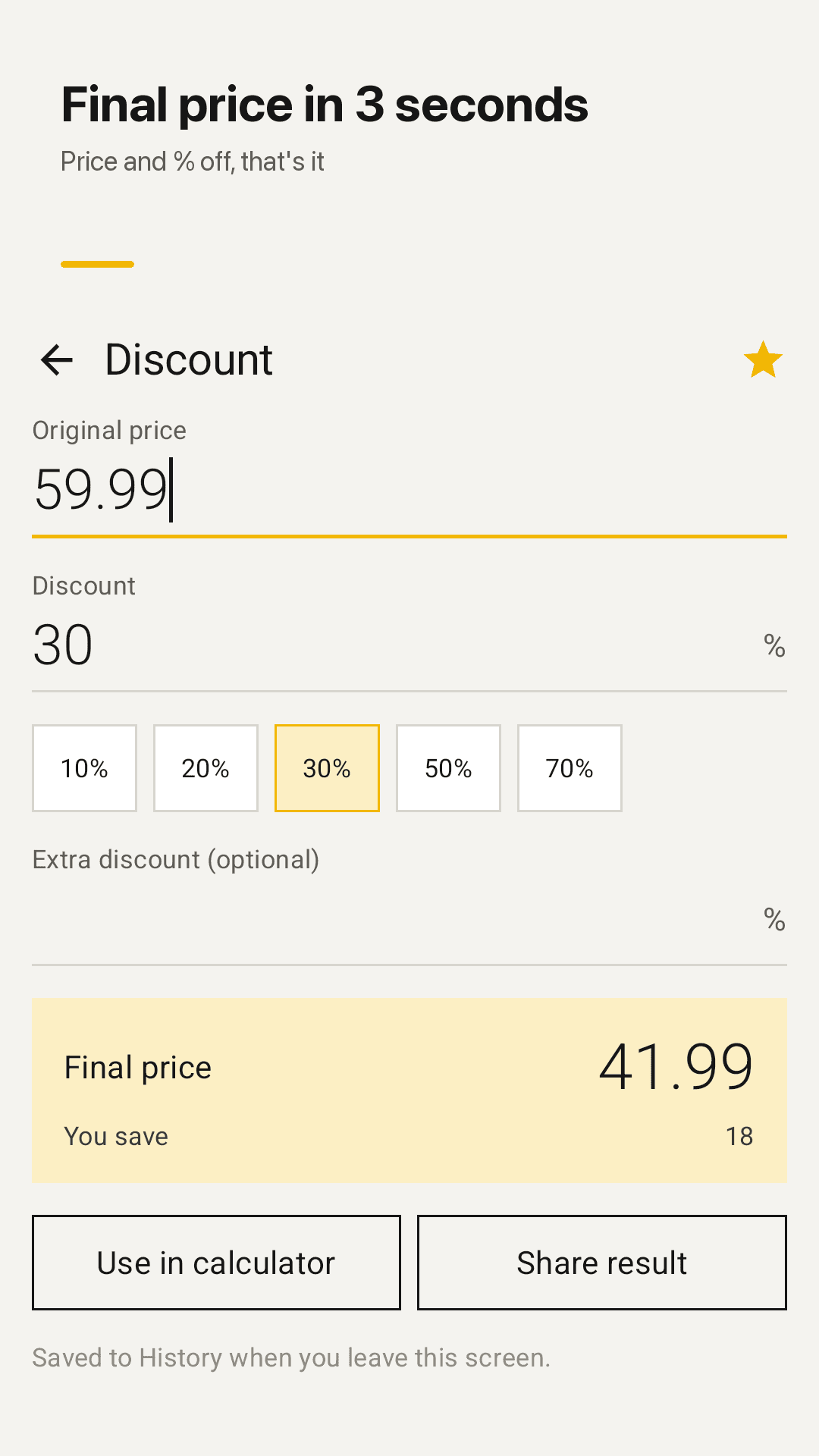
Discount tool: final price and savings
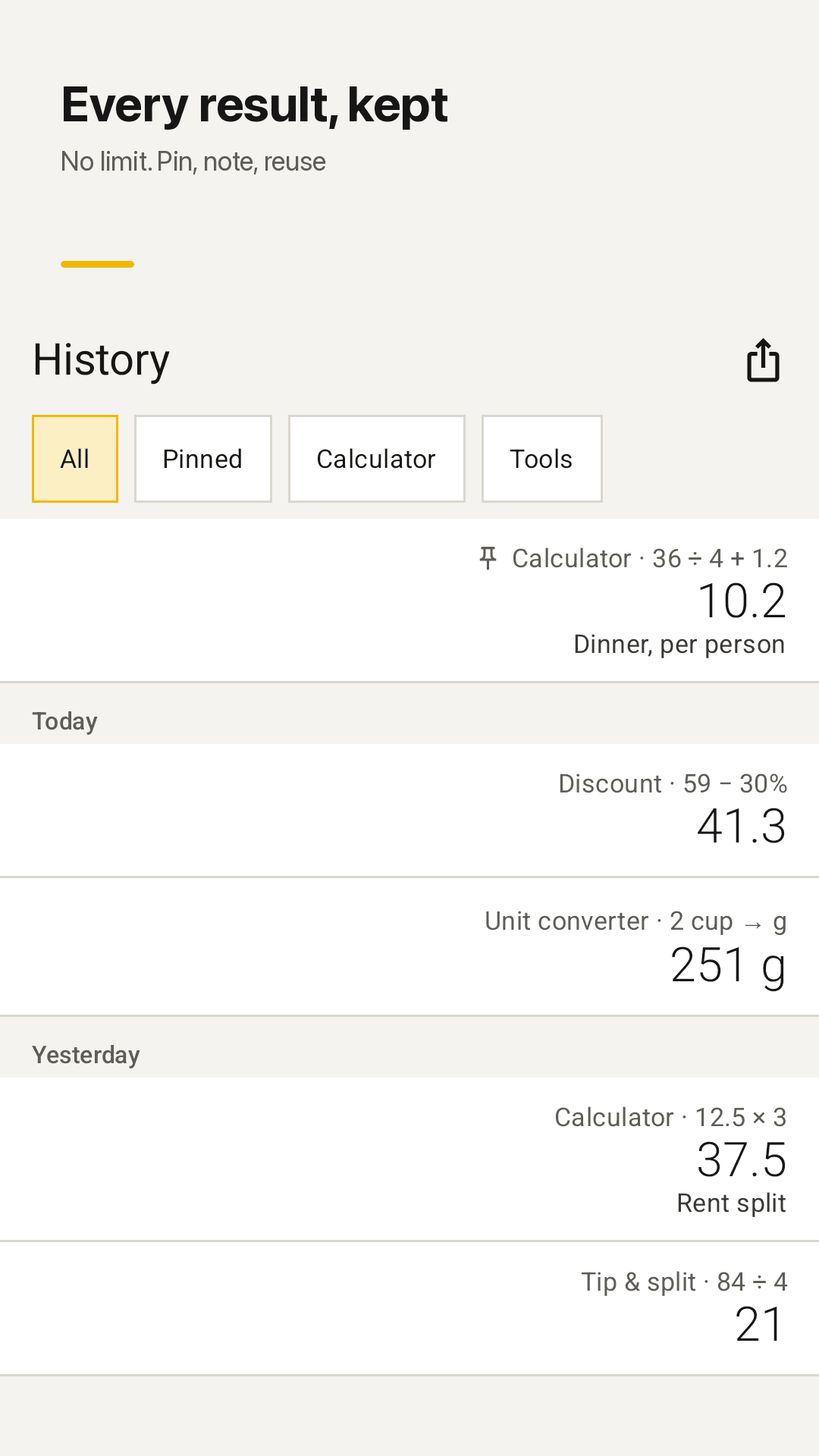
History, saved automatically
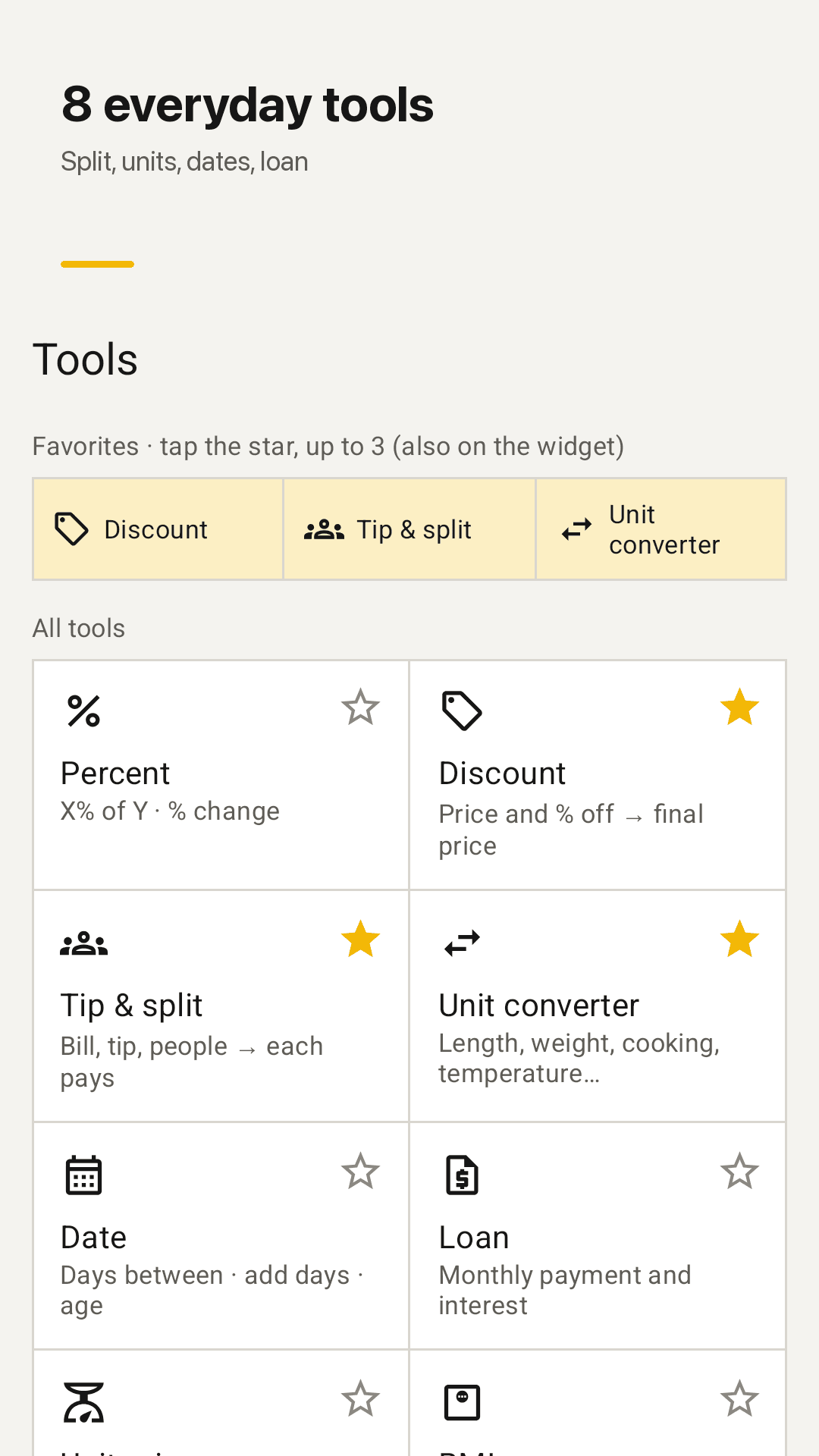
8 everyday tools and favorites
How it works
Open the app
The calculator is the first screen. You can also open it from the widget or the Quick Settings tile.
Calculate or pick a tool
Just type, or choose a tool like discount, tip & split or unit converter and fill in the values.
Reuse from history
Results are saved automatically. Pin them, add a note, and tap to bring one back.
Frequently asked questions
Why does 2+2×3 give 8 and not 12?
Calcnest follows the standard order of operations: multiplication and division are done before addition and subtraction. So 2 + 2 × 3 is 2 + 6 = 8. Simple calculators that work strictly left to right show 12 instead.
How does percent work? Is 50+10% equal to 55?
Yes. The percent key works like a desk calculator: 50 + 10% adds 10% of 50 to get 55, 50 − 10% gives 45, and 50 × 10% gives 5 (10% of 50). For "X is what % of Y" or percent change, use the Percent tool.
Can I convert cups to grams?
Yes. In the unit converter's cooking section, pick water, milk, flour, sugar, butter or rice and convert cups, tablespoons or teaspoons to grams. The ingredient matters: 1 US cup of flour is about 125 g, while 1 cup of sugar is about 200 g.
Is my calculation history limited?
No. Every calculator and tool result is saved automatically with no limit. You can pin important entries, add notes, tap to reuse a result, swipe to delete (with undo) and share an entry as text.
Does it work offline?
Yes. All calculations and unit conversions run on your phone, so it works without internet. There is no currency converter.
How do I add the widget or the Quick Settings tile?
Long-press an empty spot on your home screen, tap Widgets and drag Calcnest onto the screen; it shows your last result, the calculator and 2 favorite tools. For the tile, pull down Quick Settings, tap the edit (pencil) button and drag the Calcnest tile into place.
Do I need an account? Where is my data stored?
No account or sign-up is needed. Your history and settings stay on your phone. The app is supported by ads, and ad sound is muted.
Can I change decimal places or turn off key vibration?
Yes. In settings you can choose decimal places and a thousands separator, turn key vibration on or off, and switch between light and dark theme.