
PlannoteA study planner you can't lose by mistake
One wrong tap should never cost you a week of planning.
Study planners rarely get deleted for missing features. They get deleted because a carefully written list vanishes on one mis-tap, the widget only looks at you, and the subject colours quietly collapse into one. Plannote puts a 5-second undo and a 30-day trash behind every delete, and lets you tick tasks right on the widget.
Why study planners get deleted
You write out a whole week, then one wrong tap wipes it — no confirmation, no way back
You set a different colour for every subject, and somehow they all end up the same colour
The widget only displays. To tick one thing you open the app and pick the date again
Undo in five seconds. Tick in one tap ✨
Built so the plan survives the week
An app you open daily shouldn't make you nervous daily
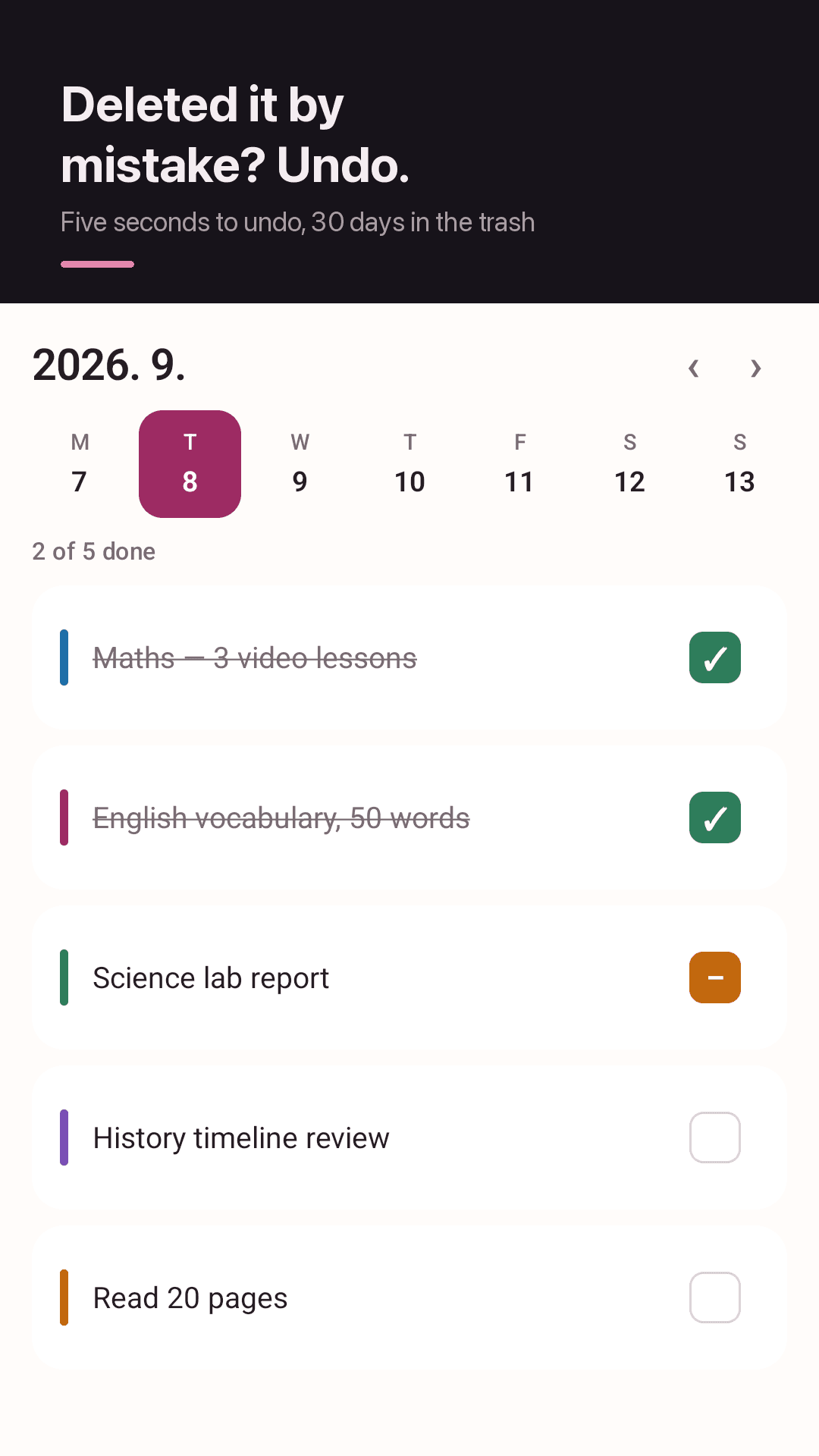
5-second undo, then a 30-day trash
Delete a task or a note and an undo snackbar sits at the bottom of the screen for five seconds. Miss it and nothing is lost either: deleted items stay in the trash for 30 days, ready to be restored.
Tick tasks on the home screen widget
Tap the checkbox in the widget and the task is ticked right there, without opening the app. Open the app later and it matches; change it in the app and the widget follows. Two sizes: a 4×2 list and a 2×2 counter.
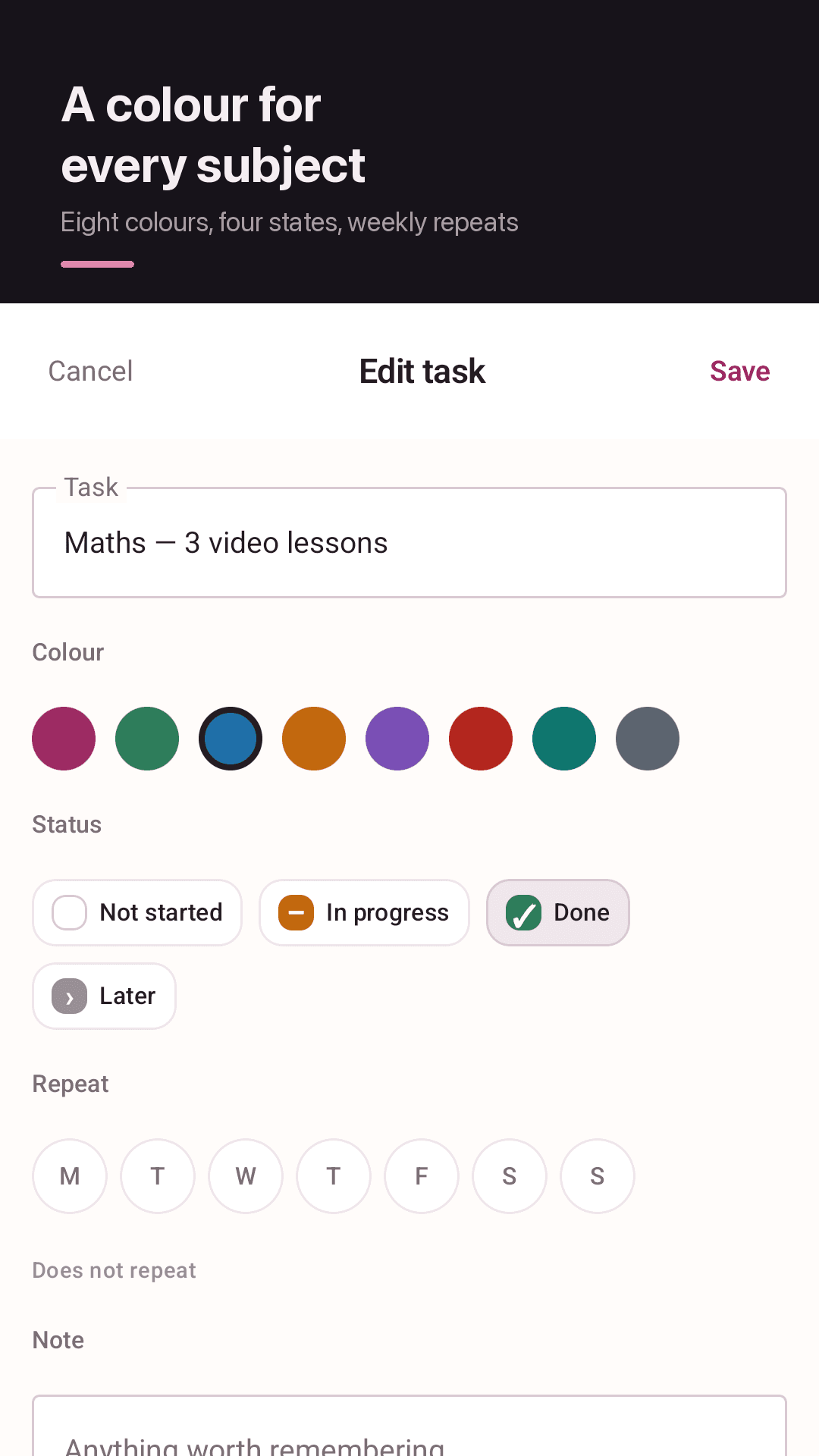
Eight subject colours that stay put
Give each subject a colour and it shows as a 4dp bar down the left of every task. The colour belongs to the subject, so maths and history don't drift into the same shade.
Four states — half-done counts too
Each tap on the checkbox cycles to do → in progress → done → later. A workbook you got halfway through doesn't have to be faked as finished or left blank.
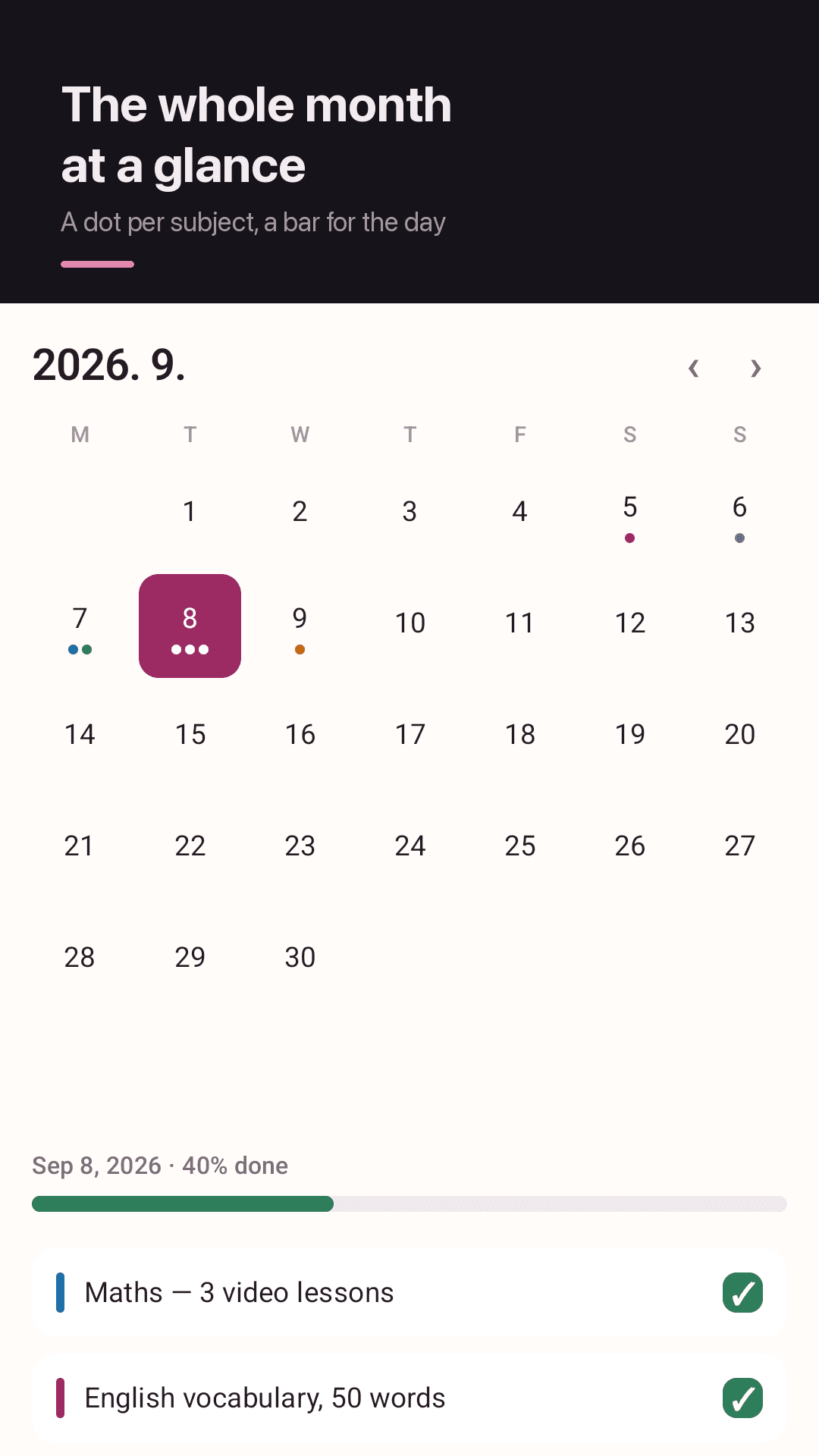
Week strip plus month calendar
Skim this week in the strip at the top, then open the month view. Every date carries the subject colour dots and a completion bar for that day, so a week that fell apart is obvious at a glance.
Switching views keeps your date
Move from the week strip to the month and you're still on the same date; come back and it hasn't moved. No bouncing to today every time you change the view.
Repeat by weekday
Vocabulary on Mon/Wed/Fri? Pick the weekdays once and twelve weeks of tasks are created for you. No rewriting the same list every Sunday.
A notes tab, and no sign-in
Keep exam scope or mistakes to review in the notes tab, title and body. There's no account, no login and no sync — everything lives on your device.
A look inside
Daily tasks, month calendar, widget, notes
Today's tasks with subject colour bars and four states
Month view — colour dots and a completion bar per day
Tick tasks straight from the home screen widget
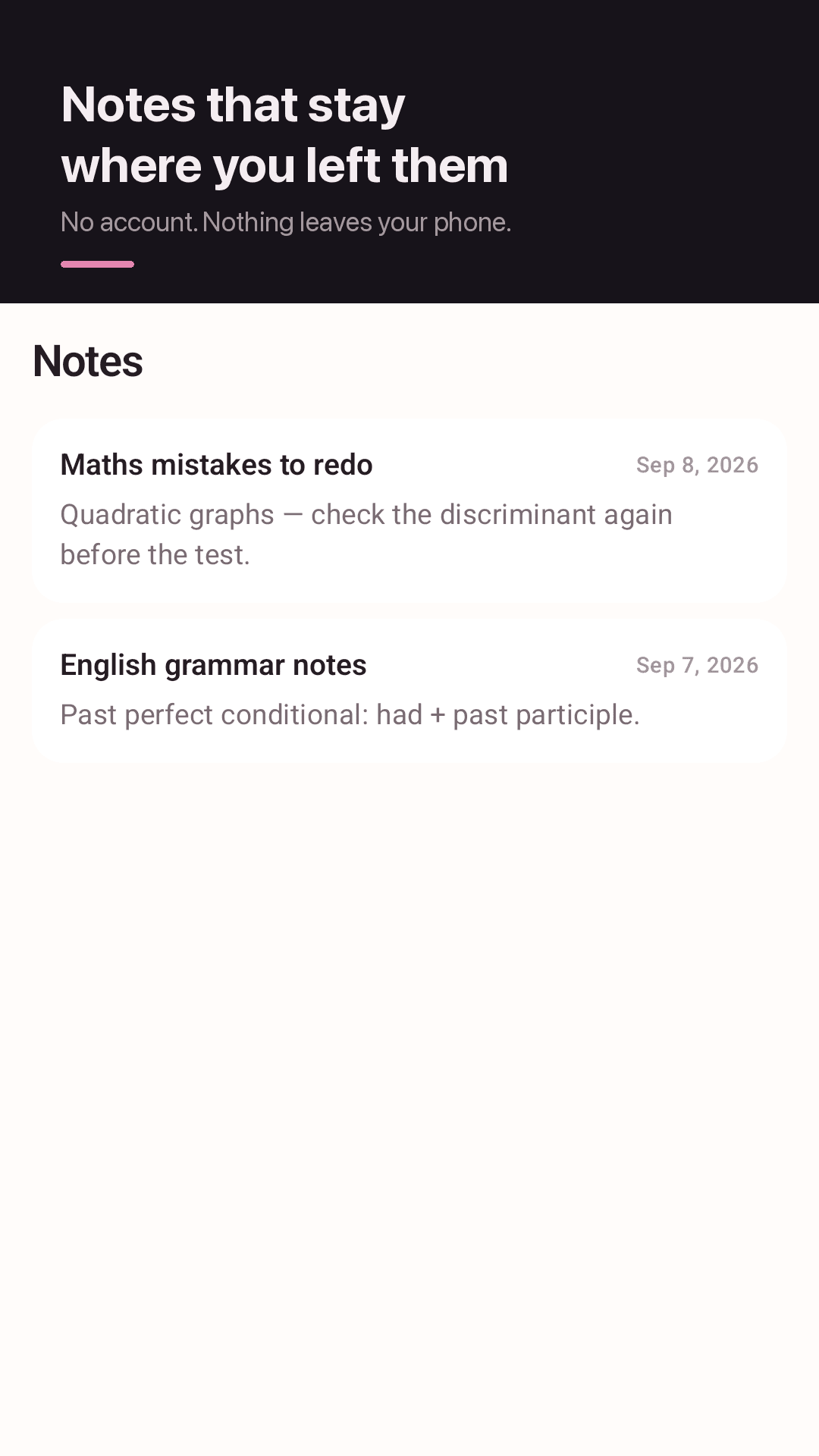
Notes tab for exam scope and mistakes to review
Three steps, that's the whole app
Colour your subjects
Pick one of eight colours per subject. From then on, that's how it looks in the list and the calendar.
Put tasks on dates
Write what you'll study that day, and set anything weekly to repeat by weekday to create twelve weeks at once.
Tick from the widget
Tap the checkbox on your home screen to move a task along. Deleted something by accident? Undo within five seconds, or pull it out of the trash.
Frequently asked questions
I deleted a task by accident. Can I get it back?
Yes. Deleting shows an undo snackbar at the bottom of the screen for five seconds, and tapping it restores the item immediately. If you miss those five seconds, the item sits in the trash for 30 days and you can restore it from there. The same applies to notes.
Is there a confirmation step before deleting?
Instead of asking you to confirm every single delete, Plannote makes deleting reversible. The 5-second undo and the 30-day trash mean an accidental delete comes back, while a delete you actually meant takes one tap and no dialog.
Will my subject colours end up merged into the same colour?
No. The colour is attached to the subject and stays that way. Choose from eight colours per subject and the 4dp bar in the list and the dots on the calendar keep showing that colour.
Can I tick the checkbox in the widget?
Yes — that's the point of the Plannote widget. Tapping a checkbox on the home screen changes the task without opening the app, and it syncs both ways with the app. There's a 4×2 widget that shows the list and a 2×2 one that shows how many are left.
Can I see today's tasks from my home screen?
Yes. The 4×2 widget shows today's list, so you can read it without opening the app — and tick things off from the same place. If you only want the number left, use the 2×2 widget.
Can I start using it without signing in?
Yes. There's no account and no login. Install it and start writing; data is stored on your device only. The trade-off is that there's no cross-device sync or cloud backup.
If I open the month view, do I lose the date I was on?
No. Moving between the week strip and the month view keeps the selected date and month. It won't snap you back to today or throw you out of the month view.
Why are there 'in progress' and 'later' states?
Studying doesn't split neatly into done and not done. Each tap on the checkbox cycles to do → in progress → done → later, so a workbook you got halfway through stays in progress, and what you didn't reach today is marked as later.
Do I have to retype the tasks I repeat every week?
No. Repeat by weekday generates twelve weeks of the task from the weekdays you pick, including combinations like Mon/Wed/Fri.
How many notifications will I get?
One short reminder in the evening, and you can turn it off in settings. The app is ad-supported (AdMob), and where required you'll see a consent form the first time.
Write down what you're studying today
Install it free and colour one subject. Anything you delete by mistake comes back in five seconds — or within 30 days.